How to Create a QR Code on iPhone for Free in 2026 (Step by Step)
You can scan a QR code with your iPhone's camera. But the moment you try to make one — for your menu link, your Wi-Fi, your contact card, your event sign-up — the camera can't help.
Here's a straightforward way to create one on iPhone in about a minute, and what to know before you print it.
What iPhone Can Already Do
The iPhone camera (and the Control Center code scanner) reads QR codes natively. Recent iOS versions can also show a QR code for sharing a Wi-Fi network from the Passwords app, and Apple Shortcuts can generate a basic QR code from text or a link.
What iOS doesn't give you is one place to create different kinds of codes — a contact card, an email with a pre-filled subject, a phone number, a text message — save them, and find them again later. For that, you need an app.
What to Look For in a QR Generator
- Free to create — not "free to scan, paid to generate"
- The content types you need — link, Wi-Fi, contact, email, phone, SMS, text, social profiles
- No watermark on the saved QR image
- No subscription for the basics
- A history so you can find a code again without recreating it
A Free Option: Qrra
Qrra is a free iPhone app from SoSo Family that scans QR codes and barcodes and creates QR codes. No account, and codes are made on your device.
How it's paid for: Qrra shows ads. Your first 5 uses are ad-free; after that a full-screen ad appears every other use, and a one-time Remove Ads purchase turns them off.
Step 1: Install Qrra
Open the App Store and search Qrra, or tap here to install. It needs iOS 17 or later.
Step 2: Pick What Your QR Code Should Do
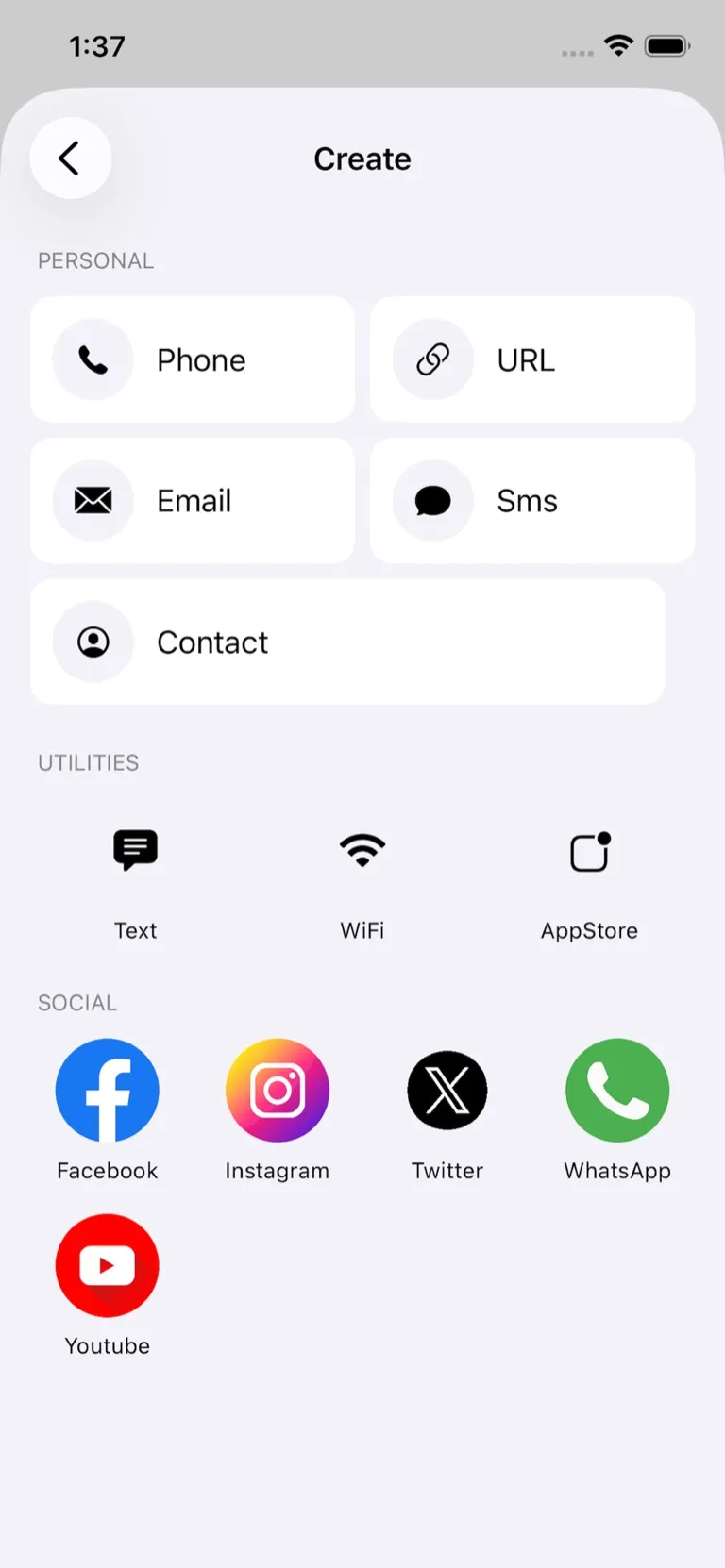
Open Qrra and tap Create. Choose the content type:
| Type | Use case |
|---|---|
| URL | Menu page, sign-up form, product page, social profile link |
| Contact | Name, phone, email, company — for a business card |
| Wi-Fi | Network name + password — guests connect by scanning |
| Text | Short note, room or table number, instructions |
| Recipient and subject, pre-filled | |
| Phone | One-tap call |
| SMS | A text message to a number, pre-filled |
| App Store / social | Links to an app, or a Facebook, Instagram, X, WhatsApp or YouTube profile |
For most small-business uses, URL and Wi-Fi are the two you'll come back to.
Step 3: Enter the Content
For URL, paste your link. For Wi-Fi, enter the network name (SSID), password and security type (usually WPA2). For Contact, fill in the fields you want included.
Step 4: Save and Share
Save the QR code to your Photos, then:
- Print it on a flyer, business card, or table card
- Drop it into a Canva design or document
- Share it via Messages, AirDrop, or email
There's no watermark on the image. The code is also kept in Qrra's history, so you can open it again later.
Before You Print: What a Plain QR Code Can't Do
Qrra makes static QR codes — the link or text is written into the pattern itself.
- You can't change it after printing. If the menu link changes, you make a new code. (Tip: point the code at a page you control, like your menu page, and update that page instead.)
- No scan statistics. A static code doesn't report how many people scanned it.
- Standard black-and-white look. Qrra doesn't add colors or logos. The upside: high contrast is what cameras read most reliably.
If you need editable links or scan counts, you need a "dynamic QR" service, which usually costs a monthly fee.
Real Use Cases
Menu QR Code
A café owner creates a URL QR code pointing to their online menu page and prints it on a table card. When dishes change, they update the menu page — the printed code keeps working because the page address stays the same.
Wi-Fi for Guests
A host creates a Wi-Fi QR code, prints it on a small card, and puts it by the door. Guests scan and connect without asking for the password.
Digital Business Card
A freelancer creates a Contact QR code with their name, email and phone and keeps it in Photos. At meetings, anyone can scan it and add them to contacts.
If you're going paperless, you'll probably also want to scan receipts and documents to PDF — Scanory does that, free and on-device.
Event Sign-Up
An organizer creates a QR code linking to the registration form and prints it on flyers. Attendees scan instead of typing a long URL.
What About Other Apps?
Many "QR Code Generator" apps follow one of these patterns:
- Paywall on creation — scanning is free, generating needs a subscription
- Watermark on the output — the app's logo is stamped on your code
- Design-heavy editors — colors, logos and styles, usually on a paid plan
Qrra doesn't do design, and it does show ads — but creation isn't behind a subscription and there's no watermark.
Frequently Asked Questions
Can I make a QR code on iPhone without an app?
Partly. Apple Shortcuts can generate a basic QR code from text or a link, and the Passwords app can show a QR code to share a Wi-Fi network. For contact, email, phone or SMS codes — and a history of the codes you made — an app is easier.
Is Qrra free to generate QR codes?
Yes, with ads. Your first 5 uses are ad-free; after that a full-screen ad appears every other use, and a one-time Remove Ads purchase turns them off. There's no subscription and no watermark.
How do I make a Wi-Fi QR code on iPhone for free?
Install Qrra, tap Create, choose Wi-Fi, enter the network name (SSID), password and security type (usually WPA2), then save it. Phones that scan it can join without typing the password.
Can I add my logo or change the colors?
Not in Qrra — it creates standard black-and-white codes. If you need a branded design, you'll need a design-focused tool.
Will the QR code expire?
No. A static QR code is just a pattern that encodes your link or text. It keeps working as long as the destination works — but you can't change what it points to after printing.
Will the QR code work on Android?
Yes. QR codes are a universal standard. A code made with Qrra scans on Android or any device with a QR reader. Qrra is also on Google Play.
Download Qrra
Free, no account, no subscription. Create your first QR code in about a minute.
Download Qrra from the App Store
For a comparison with other scanner apps and the iPhone camera, see Best Free QR Code Scanner & Generator App for iPhone in 2026.
More Free Apps from SoSo Family
Qrra is part of the SoSo Family — free-to-download, privacy-focused apps.
- Scanory — Best free document scanner app for iPhone, no watermarks, free PDF export
- VoiceNote+ — Best free voice memo app with AI transcription in 13 languages
- FitnessLog — Free workout tracker, no subscription needed
- SnapTip — Split bills fairly with free tip calculator